briDJe User Manual
Your First Sync
Last updated
Start small. Use a handful of tracks so you can check the result in the destination app before moving a whole library. The free tier exports 15 tracks at most (see License Activation).
1. Import
Click Import or press Cmd+I / Ctrl+I, then pick a source:
- Audio Files folder
- Traktor
collection.nml(guide) - Rekordbox
rekordbox.xml(guide) - Serato
_Serato_folder (guide) - VirtualDJ
database.xml(guide) - Engine DJ
Engine Libraryfolder (guide)
Close the source app first. For DJ sources, choose a scope (everything by default, or selected playlists), click Preview import, review what’s new, changed or absent, then accept and apply. Your source files are not changed.
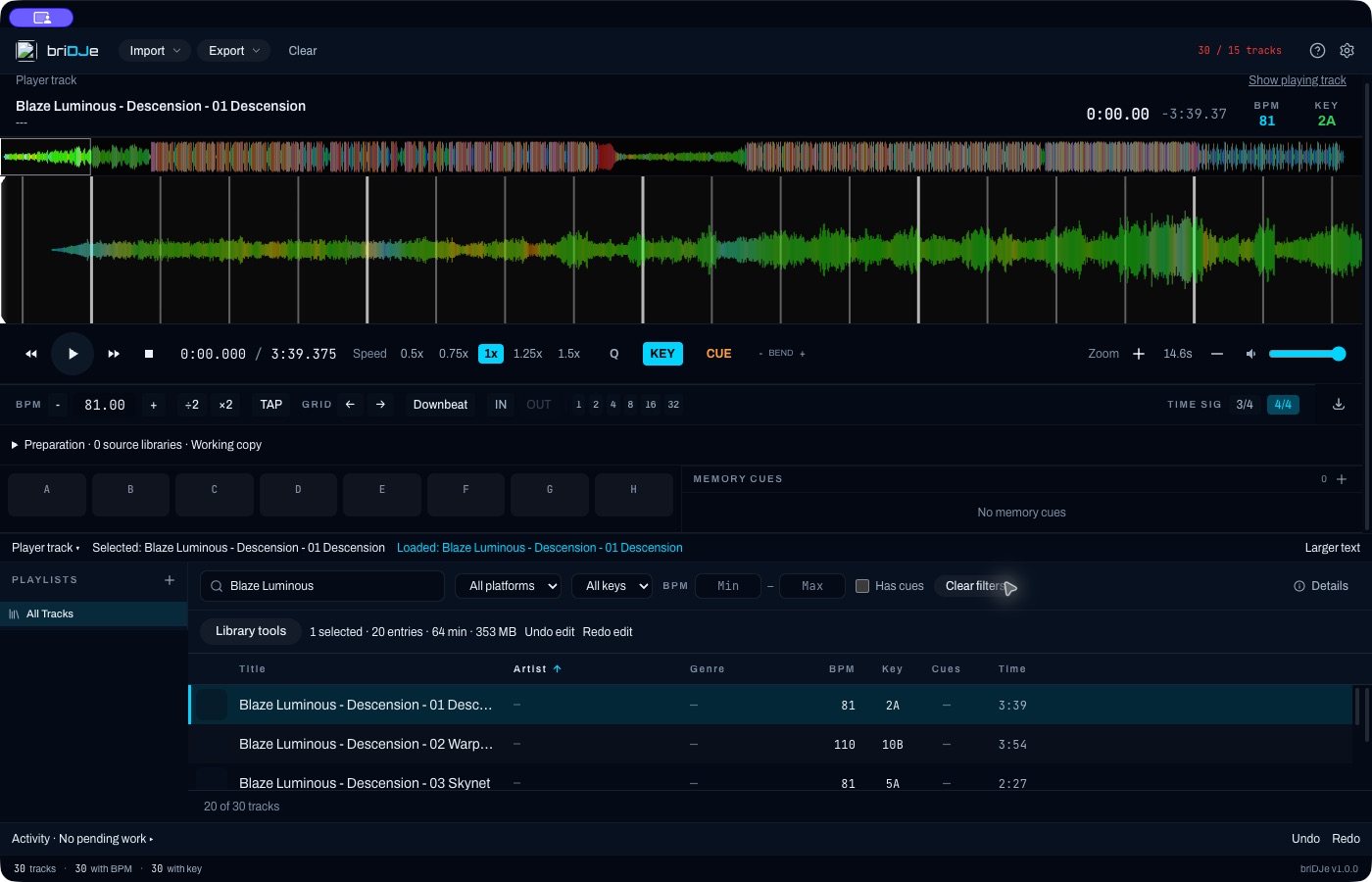
A track loaded in the deck with the library filtered. No cues have been prepared yet.
Audio Files folder
For a plain folder, you can set Analyze BPM and beat grid, Detect musical key, Include subfolders and a BPM range (presets 68–135, 78–155, 88–175, 98–195, plus your saved setting). Recognized extensions are MP3, FLAC, WAV, AIFF/AIF, M4A, OGG and WMA. A file being recognized doesn’t prove every variant will decode or play, so check the activity summary for failures. Review automatic BPM and key by ear.
2. Inspect and load
Filter and select tracks to see their metadata. Right-click a track and choose Load to Deck, or select it and press Enter while focus isn’t in a button or input. Double-clicking a title starts inline editing, not loading. Press D for details.
Check the overview and detailed waveforms against your ears: beat grids, hot cues and loops.
3. Preparation
The preparation panel keeps immutable source snapshots separate from your working preparation, with protections, history and source comparison. When you reimport, preview the changes and review protected local edits. Resolve competing preparations explicitly in the Preparation panel. Don’t expect everything to merge automatically. See Preparation and reimport.
4. Export a test
Click Export or press Cmd+E / Ctrl+E. Choose a target, scope and output path, then Preview export, which writes nothing. Resolve blocking errors, check the acceptance box, and export. Export scope is the selected playlists (optionally plus unfiled tracks) or the entire library. It is not your current track selection or search.
Close the target app first, and keep backups. Read Exporting and backups for limits per destination.
5. Verify in the target
Open the destination app and check track paths, grids, cues and loops on the test tracks. Only then export more. A restart of the destination isn’t guaranteed to make a new export appear.