briDJe User Manual
Serato DJ Pro
Last updated
For Serato, choose the _Serato_ folder that contains the database V2 file and the Subcrates folder. Don’t pick a root music folder.
Import steps
- Close Serato DJ Pro so the library is saved and consistent.
- In briDJe, click Import or press
Cmd+I/Ctrl+I. - Choose Serato and click Browse. Select the
_Serato_folder. - Choose the scope. The default is everything. You can instead pick selected playlists (crates); ancestor folders are included.
- Click Preview import.
- Review new, changed and absent tracks and crates, plus local edits, conflicts and uncertain matches.
- Accept and apply.
Import reads the database into briDJe’s working library and leaves the Serato files unchanged. There is no “Read tags” option in the import dialog.
Limits
- Imported smart crates become static snapshots; their rules aren’t executed.
- Check cues, loops and grids by ear after import: beat grids, hot cues, loops.
- If tracks show as missing, the audio paths stored in the database no longer match where the files are.
- Free-tier libraries lock imports once they have reached 15 tracks. See License Activation.
Exporting to Serato
Choose the Serato target and an output folder. briDJe writes a _Serato_ database and crates there. Leave Target library blank for a new library, or supply an existing one to merge.
Cues, loops and grids are written into the referenced music files only if you tick the audio-tag consent option in the export form. It is unchecked by default. Without consent, briDJe shows a warning that preparation data is omitted. Use copies of tracks for your first tests, since consent modifies the audio files.
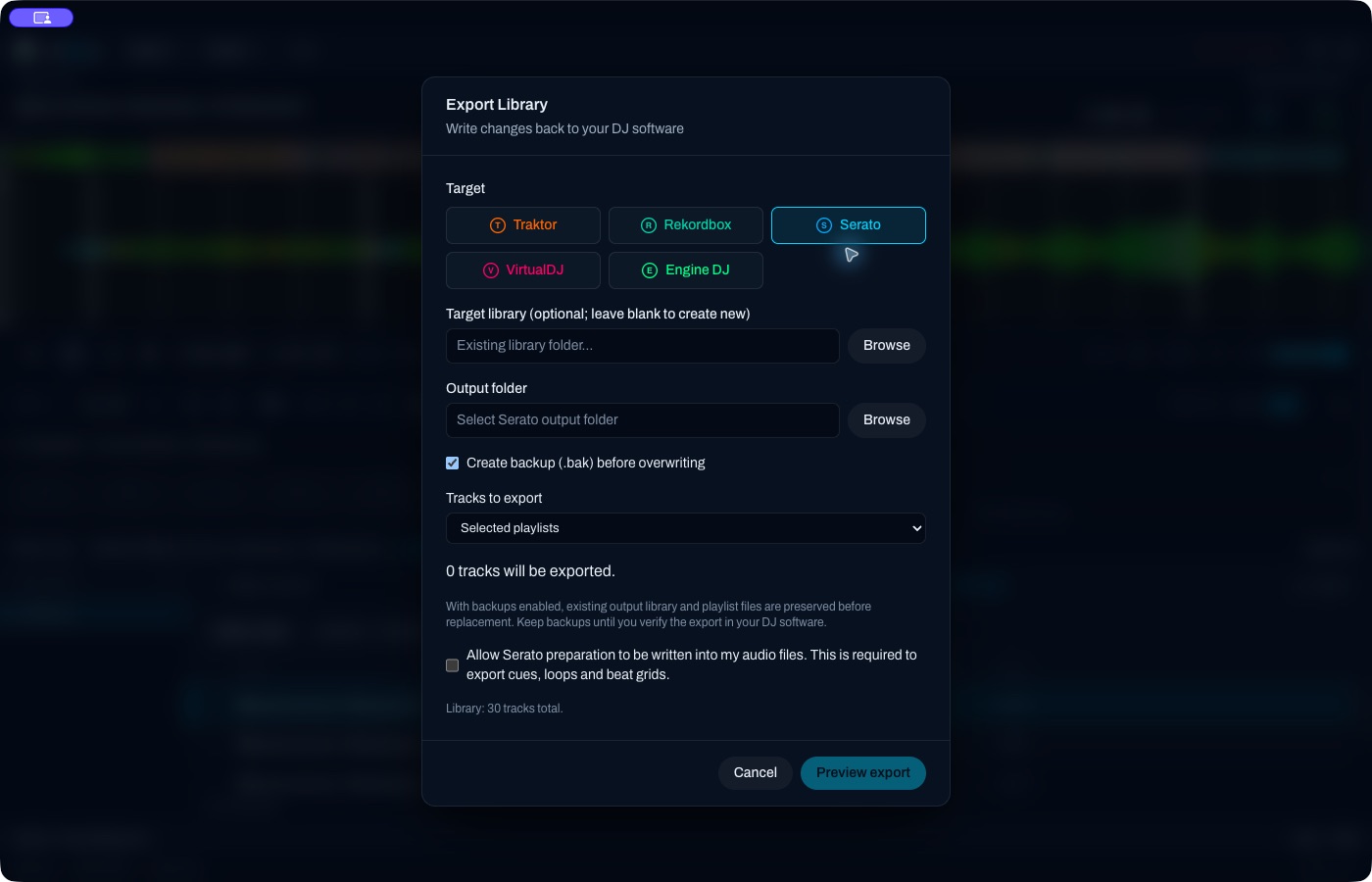
The export form in its empty state, with nothing selected and consent unchecked. It is not a completed export.
Unnumbered memory or load cues are left out of Serato pad banks unless you assign them to free pads. Unusual meters or tempos can produce warnings or block the export. Preview first, since Preview export writes nothing. Details: Exporting and backups.
Also see Preparation and reimport.