briDJe User Manual
Hot Cues
Last updated
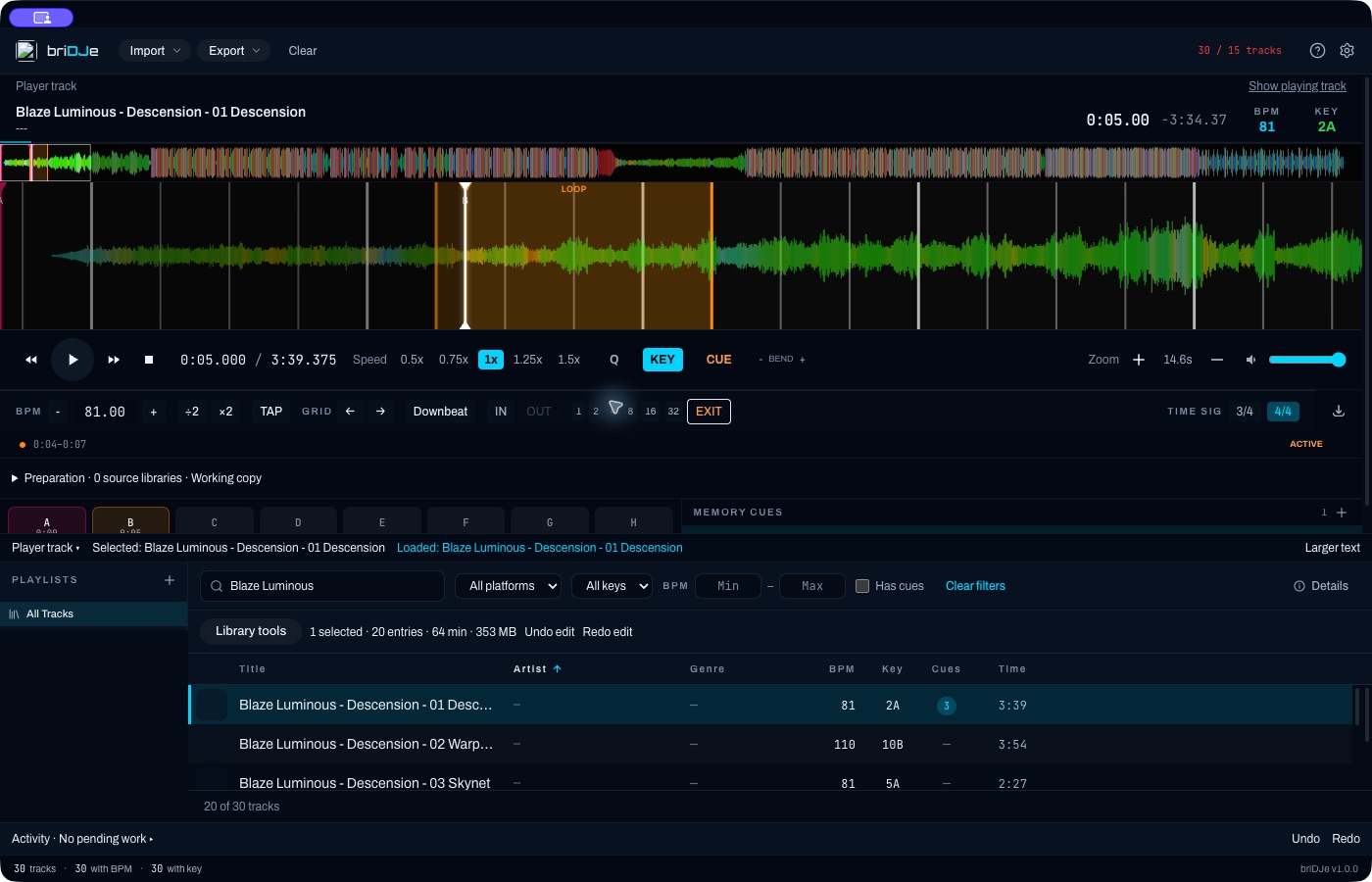
A reversible working-copy example: hot cues A and B, one memory cue, and an active 4-beat loop. The edits were undone after the capture and no audio was altered.
Pads in the deck
Hot cue pads A–H sit below the waveform. Click an empty pad to set a cue at the playhead; click an assigned pad to jump to it. Keys 1–8 trigger pads, subject to the app’s global focus rules (typing in a field won’t fire them). With Quantize on, new cues snap.
Drag a cue on the deck to change its position. The loaded track determines what you are editing (Library and Player).
Memory cues
Memory cues are unnumbered. Add one with + at the playhead, then edit its label, color and position. Deleting asks for confirmation where a delete control is shown.
Cue Points in Details
Press D to open Details, then use Cue Points → + Add Cue. The new cue defaults to 0 seconds; edit its time explicitly rather than assuming it uses the deck playhead. The editor handles hot cue, memory, load, fade and grid types, plus label, color and time. Time is typed manually here.
Cue edits change the working copy only. Protecting preparation doesn’t turn explicit edits off (Preparation and Reimport).
What happens on export
- Serato and Engine DJ omit unnumbered memory and load cues from the pad bank unless you explicitly assign them to free pads.
- If two cues or loops share a pad, export is blocked until you choose; the original snapshot remains.
- Traktor can’t take arbitrary RGB, so it uses its cue-type colors. There’s no promise of a perceptual nearest match.
The export preview lists omissions (Exporting and Backups). For loops see Loops.